User's Guide (Junos Pulse)
Index
- 1. Available platforms
- 2. Set up "Exception Site List" of Java
- 3. How to change the password
- 4. How to login to SSL-VPN of J-PARC
- 5. How to logout
- 6. Compliance check
- 7. The length of time-out
1. Available platforms
Supported platforms of Junos Pulse(application for connection)
- Windows: 7, 8, 8.1
- OS X: 10.8, 10.9, 10.10
Go to Network Connect Part for the following platforms;
Windows Vista, MacOS X 10.6 10.7, Linux
Requirement Software
- Web browser
- Windows : Internet Explorer(Active X), Firefox(32bit version)
- OS X : Safari
- Java (8 or later version)
For the client environments that are enable to connect based on JLAN-support office identified and ones that manufacturer supports, visit here.
2. Set up "Exception Site List" of Java
Set up "Exception Site List"of Java before SSL-VPN access.
- [Instruction for Windows]
- Open Control Panel.
- Click "Programs" > "Java" icon.
- Click "Security" tub in Java control panel.
- Click "Edit Site List...".
- Click "Add" button.
- Enter "https://secgw.j-parc.jp" in a !box > Click "OK" button.
- Confirm that the above URL is showing in the "Exception Site List". > Click "OK" button.
- [Instruction for OS X]
- Click "Apple Menu(
 )" > "System Preferences".
 - Click "Java" icon.
- Click "Security" tub in Java Control Panel.
- Click "Edit Site List..." button.
- Click "Add" button.
- Enter "https://secgw.j-parc.jp" in a !box > Click "OK" button.
- Confirm that the above URL is showing in the "Exception Site List". > Click "OK" button.
- Click "Apple Menu(
3. How to change the password
UserID and initial-password are sent you after the completion of your SSL-VPN application.
Please change the initial-password as soon as you received it.
※If you already use SSL-VPN connection with "Network Connect" with your own password, continuously use them to connect with "Junos Pulse".
So no retaking the password is necessary for connecting with "Junos Pulse". And the OS that is supported to connection with "Network Connect" and "Junos Pulse" both side, which is possible to connect with either one.
Reminder
- You should register your new password before using the SSL-VPN because the Initial-password cannot use for login.
- The Initial-password has an expiration date. Your account will be locked if the password is not changed.
If you need password information,visit here.
3.1 Start your browser, and access to J-PARC SSL-VPN certification site.
(Accessible only from JLAN, JAEA-LAN and KEK-LAN. If you are outside from J-PARC/KEK/JAEA, the certification site URL is written in the page or paper that you got the initial-password information.)
3.2 First of all, click the "Change Password".
(If the site is displayed in Japanese, operate "Change to English" shown as the below example window.)
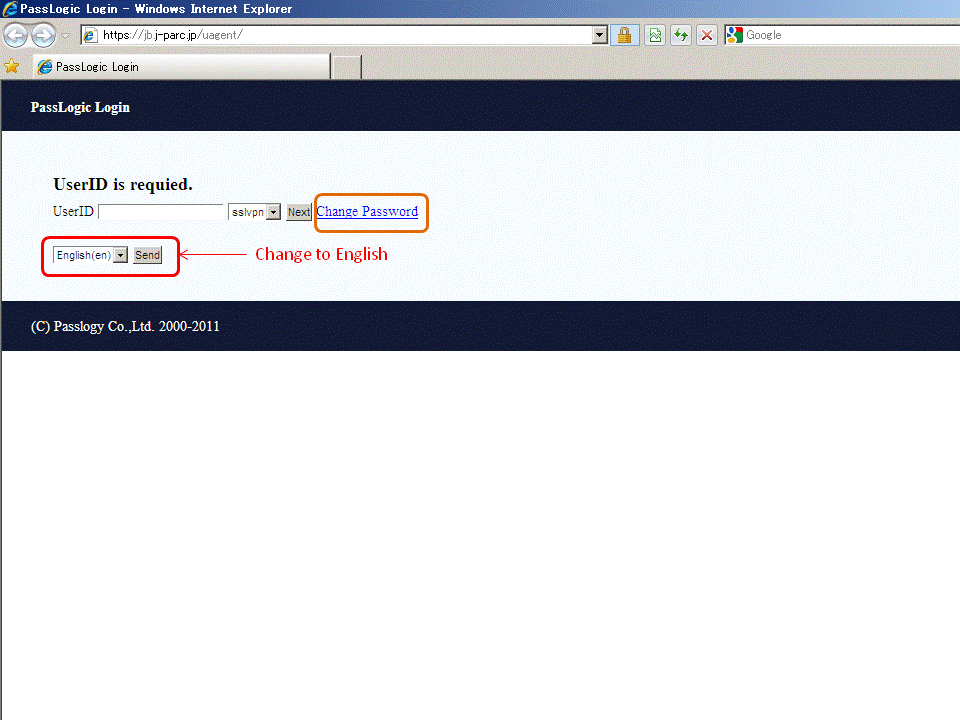
3.3 Input your "UserID", and click the "Next" button.
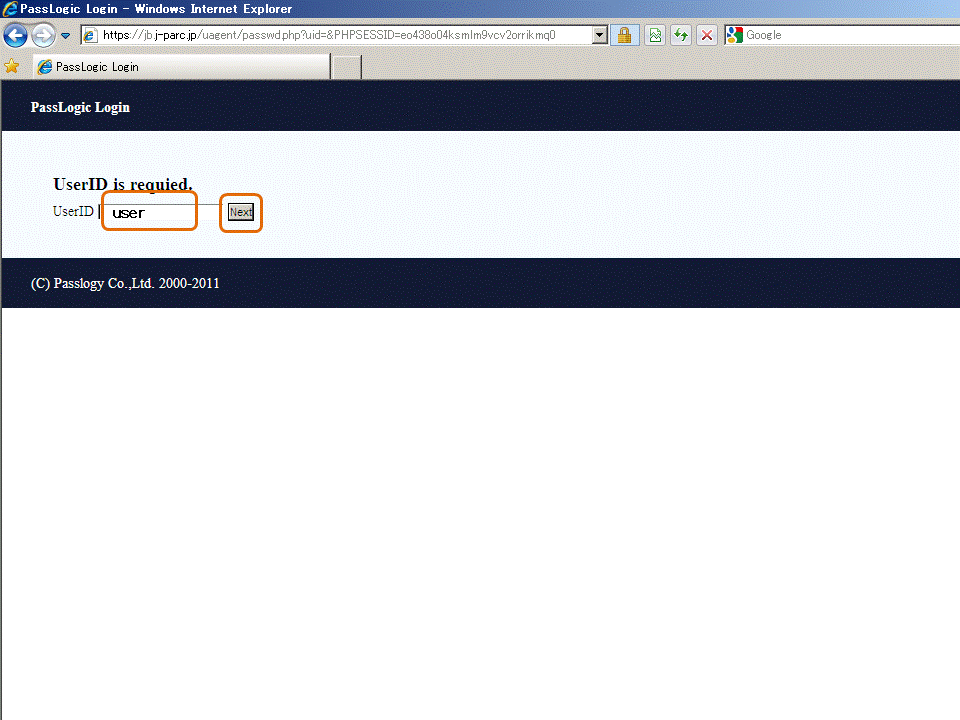
3.4 Input your current password ( or initial-password ), and click the "Next" button.
Must see details of the initial-password, visit here.

<Reminder>
- A matrix is effective for 5 minutes.
Reload the page, if 5 minutes or more passed after the matrix is displayed. - The account will be locked after 10 invalid password trials.
In the case, please contact to JLAN-support office.
3.5 Decide your new password. (Must see the rule of new password, visit here.)
And input your new password (do not forget new password should include not only Image-password but also PIN), and click the "Next" button.

3.6 You must type in your new password 3 times (STEP1, STEP2, STEP3) to memorize it to the system. This is STEP2.
Please input your new password again with newly displayed matrix, click the "Next" buttorn.

3.7 This is STEP3.
Please input your new password again with newly displayed matrix, and click the "Next" buttorn.

3.8 The procedure of changing initial-password has been completed.
If you want to login the SSL-VPN, click the "Return" button.

4. How to login to SSL-VPN of J-PARC
<Reminder>
For Windows, you should have administrator's authority to install ActiveX program.
-
If your browser hangs and the redirection does not work,
please uninstall softwares below and try to connect SSL-VPN again.- Juniper Networks Host Checker
- Juniper Networks Junos Pulse
- Juniper Networks Setup Client
These are installed automatically when you connect SSL-VPN.
4.1 Start your browser, and access to the certification site.
URL for SSL-VPN of J-PARC connection ( Accessible from JLAN, JAEA-LAN and KEK-LAN. )
4.2 Input your "Login ID", and Select "mac-os-x-10.10" in the pulldown menu, and click the "Next" button.
(If the site is displayed in Japanese, operate "Change to English" shown as the below example window.)

4.3 Input your password, and click the "Login" button.

<Reminder>
- A matrix is effective for 5 minutes.
Reload the page, if 5 minutes or more passed after the matrix is displayed. - The account will be locked after 10 invalid password trials.
In the case, please contact to JLAN-support office.
4.4 The "Loading Components.." windows is displayed, and the Compliance check of your PC will be started.

※For "Safari" on OS X
At the first access, it is unable to connect cause of no Java permission to access.
Still keep open the browser "Safari" then change the setting follow the instruction to connect.
- Select "Safari" from the menu bar > "Preferences..." > Select "Security" tub >
Safari 6 : Click "Manage Website Settings..."
Safari 9 : Click "Plug-in Settings..." - Select "Java" from the side bar > Click "Allow" of "secgw.j-parc.jp" is showing in a "Configured Websites"
- Select "Run in Unsafe Mode" > Click "Trust" on the confirmation screen
- Confirm the "!" is showing beside "Allow" then click "Done"
- Close "Preferences(Security)" of "Safari" then close the browser "Safari".
If the system detected concerns on your PC, this window will be displayed, go to "6. Compliance check".

4.5 If the client-host checking procedure is completed, you can see the "Welcome to the Junos Pulse Secure Access Service." window.
Click the "Start" button, your PC will be connected to JLAN via SSL-VPN.
When the first log_in and update, Junos Pulse downloading and installing takes about 3minutes.
After first log_in, Junos Pulse has been installed on the PC and automatically performed when SSL-VPN use.

5. How to logout
To logout, there are two methods as follws;
- On the browser
- From the "Network connect" window
5.1 On the browser
Select the "Welcome to the Junos Pulse Secure Access Service." window, and click the "Sign Out" button.
This operation is applied for Windows or Mac.

5.2 From the "Network connect" window
Logout from "Junos Pulse" windows if you closed the "Welcome to the Secure Access SSL VPN .." window.
Windows
Click the "Junos Pluse" icon in task-tray with right mouse button, and choose "Disconnect".
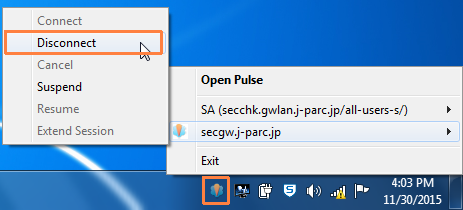
-
OS X
Click the "Disconnect" button on the "Junos Pulse" window.

6. Compliance check
When you use your PC to connect to JLAN with SSL-VPN, your PC should be passed the compliance check executed by the VPN-system.
The check-list of the compliance check is the following;
6.1 OS, Web-browsers, Java
- Visit here.
6.2 Configurations of Web-browser
<Internet Explorer>
- ActiveX is effective.
- Java is effective.
<Firefox>
- Java is effective.
6.3 Anti-virus software
- Install anti-virus software listed in"Supported anti-virus softwares" to your PC.
- The pattern file in your PC for the anti-virus software should be updated in 7 days.
- Real time protection is effective.
7. The length of time-out
- If your client PC does not transmit network packet to the VPN-system for 1 hour, the VPN connection will be killed automatically.
- The maximum session time of the VPN connection is 24 hours.